Motion Bro is a tool for browsing and applying ready-to-use presets, but it does not include any built-in preset packs by default. Preset packages need to be installed separately.
Contents
Installing a preset package with a license key
Once you have received a license key for a free or paid pack for Motion Bro, follow these steps:
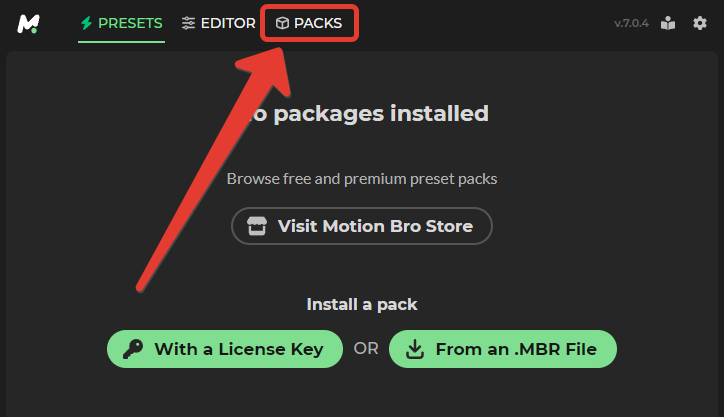
- Go to the “PACKS” section.
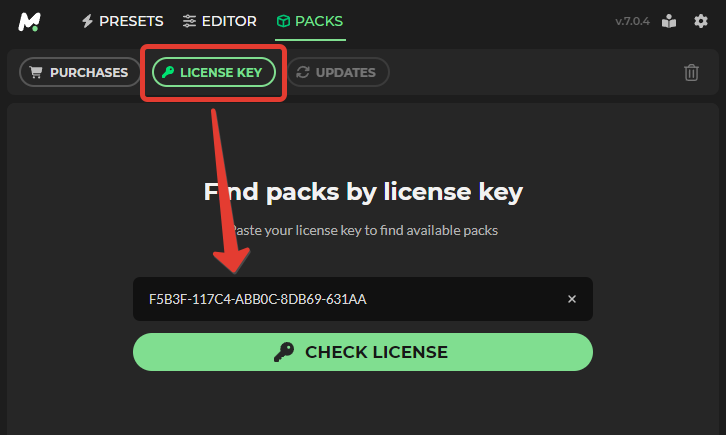
- In the “License Key” tab, paste the license key into the field and click the “Check License” button.

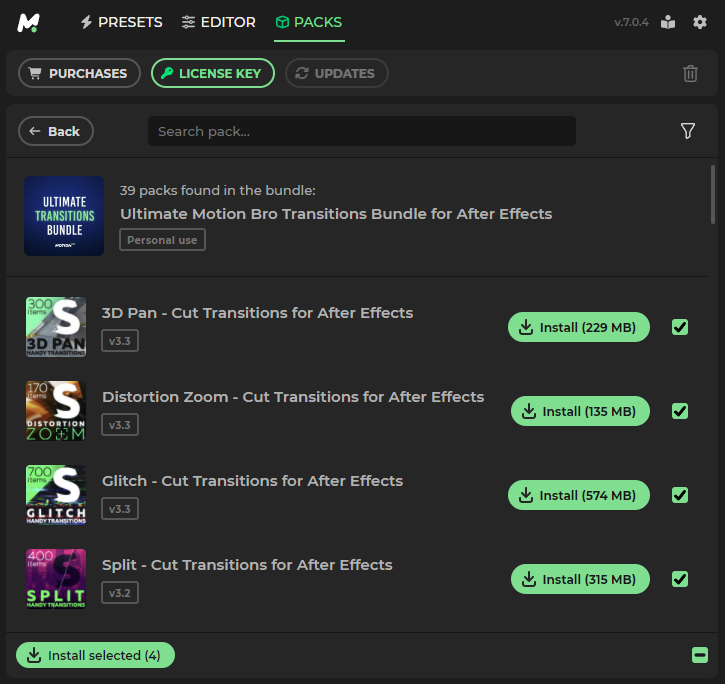
- Install the preset packages found by the license key.

Legacy installation method (manual)
In Motion Bro versions earlier than 6.0.0, you can install the preset package using the legacy method, from an MBR file.
- Drag and drop your existing Motion Bro preset packages (.MBR) into the installation window.
After installation, you may need to activate the preset package. To activate, use the license key that was sent to your email after purchasing the preset package. For more information, visit the page: https://motionbro.com/help/where-to-find-a-purchase-code/. Paste the license key into the activation window and click “Check Code”.


Changing the packages installation directory
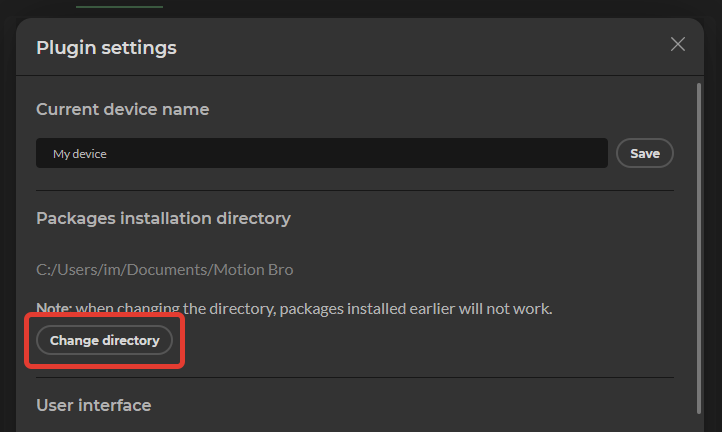
To change the default directory where installed packages are stored, follow these steps:
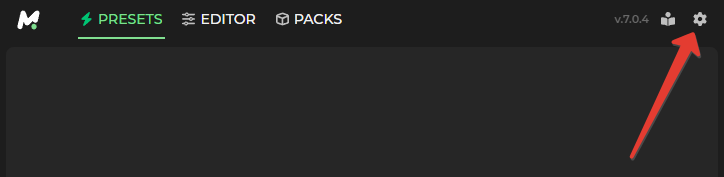
- In the top right corner of the plugin, click on the settings icon

- In tje plugin settings Click the ‘Change Directory’ and select the directory where the packages will be installed


 Products
 Transitions
 Tools
Tools Sound Effects
 Community Items
 Plugin
 Help Center
 Getting Started
 Using in After Effects
 Using in Premiere
 Video Tutorials
 Troubleshooting
 Blog
Blog Updates